
Ansys, part of Synopsys, is a leading provider of engineering simulation software that aids in virtual testing of design aspects such as electronics, fluid dynamics, thermal analysis, and structural mechanics, used across industries including automotive, aerospace, and healthcare.
Using License Statistics, you can monitor your Ansys license server to import logs of usage data, as well as take advantage of advanced capabilities, including feature versioning and anonymization of users and hosts. License Statistics’ intuitive reports and charts clearly show details such as license feature utilization, usage across hosts, and nearing expirations. With accurate, complete details about your Ansys license usage, you can readily identify underused licenses, with the potential of significantly reducing IT costs.
Read on to learn how to set up your Ansys license server for monitoring with License Statistics, and start gaining new insights into your Ansys license usage today!
How to add a new Ansys license server
Adding your Ansys license server is quick and easy using the license server setup wizard in the License Statistics UI. (If you’re unfamiliar with adding and editing license servers, see License Statistics help for complete information.)
You’ll need to have License Statistics administrator privileges to add a new license server. Setup will take just a few simple steps, including:
- Defining general information for the license server
- Enabling anonymization of users and/or hosts for gathered data
- Enabling feature versioning for gathered data
Let’s get started!
Enter general information about the license server
First, you’ll enter general information about the server, including its name, description, type and optional vendor display name.
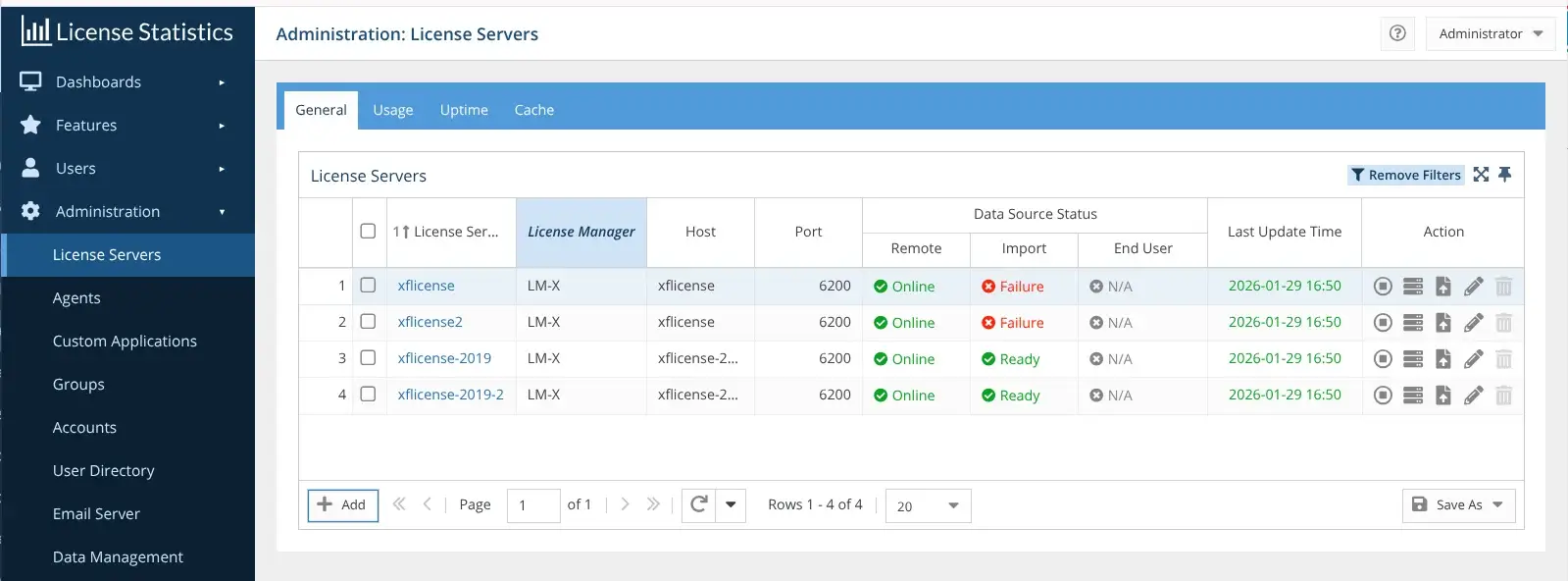
- Open License Statistics, and go to the Administration > License Servers page. (You must have License Statistics administrator privileges to access this page.)
- Click Add at the bottom of the License Servers grid to start the wizard for adding a new license server.

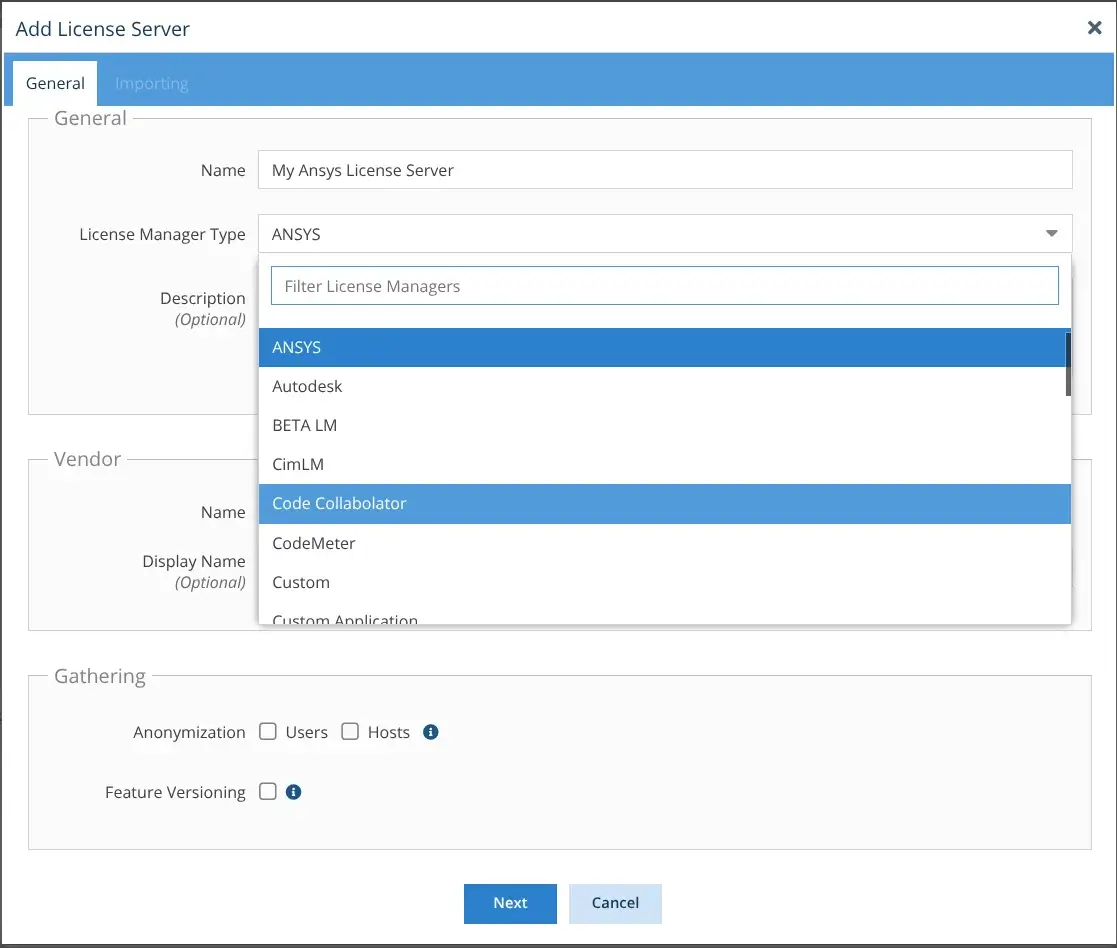
- Under the General tab of the Add License Server wizard that opens, enter the license server name. This is a required field.
- Select ANSYS from the License Manager Type pick list.

- Optionally, enter a description to help identify the license server.
- In the Display Name field under the Vendor section, add an alternate name to display for the Ansys license vendor in reports if desired. (The vendor Name shown in the Add License Server wizard is a read-only entry that is automatically detected after the first successful query or import.)
Enable anonymization
Most often used to protect user identity for legal reasons, data anonymization makes users and/or hosts anonymous in the License Statistics database and reports. When you enable anonymization:
- Usernames will be hashed, and LDAP details will be removed
- Hostnames and IP addresses will be hashed
To enable anonymization, toggle on the Host and/or User Anonymization options under the Gathering section of the General tab.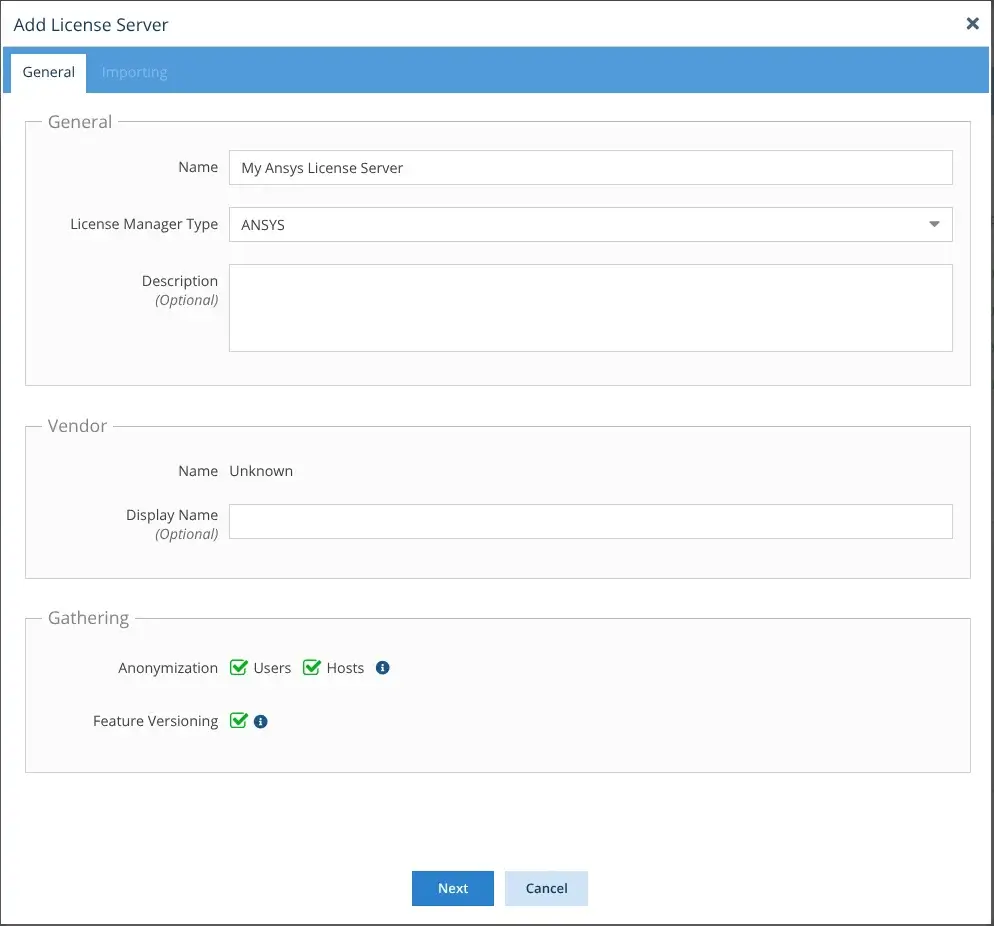
You can set the anonymization options only when adding the license server, and you won’t be able to change these settings after adding the server. However, if you don’t enable anonymization during the Ansys license server setup, you can still perform “on-demand” data anonymization of historical data as needed.
Enable Feature Versioning
When adding the Ansys license server, you can optionally enable Feature Versioning in the Gathering area, as shown in the illustration above.
- When Feature Versioning is disabled, data from all feature versions is combined into one feature with an “Unknown” version.
- When Feature Versioning is enabled, usage and denials data will be gathered separately for each version of each feature, thereby providing a finer granularity to report results.
Although gathering data separately for each version is not always necessary, you may consider using Feature Versioning if you have multiple versions of particular features that you want to track individually. For example, Feature Versioning would be beneficial in cases where your monitored Ansys features vary in cost or level of usage depending on their version.
Feature versioning applies to all features of the Ansys license server, and can only be enabled when adding the license server. You can’t disable this option later, so consider carefully whether this additional level of detail in gathered data is necessary for your monitoring needs.
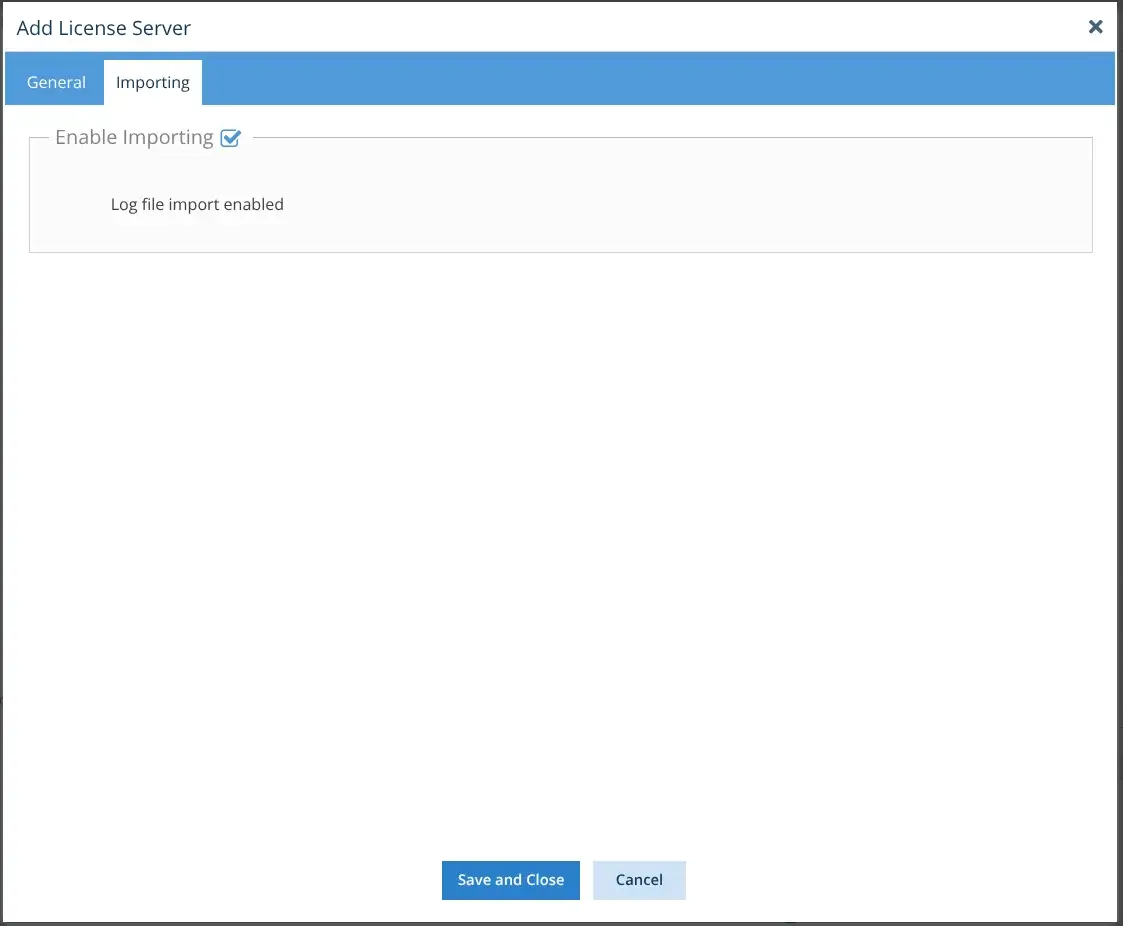
Enable importing
After you have completed entering the information in the General tab of the Add License Server wizard, you can move on to enabling importing of Ansys license server logs.
- Click Next at the bottom of the General tab to proceed to the Importing tab. (The Next button won’t be available until you’ve entered the required information in the General tab.)
- In the Importing tab, make sure that “Enable Importing” is toggled on (this is the default).

- Click Save and Close to complete the Ansys license server setup.
Let us know what you think!
We hope this article was helpful in walking you through configuring License Statistics to track your Ansys license server usage. You can learn more by visiting the License Statistics documentation, and as always, feel free to contact us at support@x-formation.com with your questions or comments. We look forward to hearing from you!