Based in Munich, Germany, and with offices abroad, Siemens Digital Industries Software (previously Siemens PLM) is Europe’s largest industrial manufacturing company. One of their most popular products is NX, a CAD/CAM/CAE commercial software suite that provides leading-edge design, simulation, and manufacturing solutions.
FlexNet license manager has long been used as the licensing solution for setting up Siemens NX license server monitoring, as described in our past article, How to set up Siemens NX license server monitoring. However, with the introduction of Siemens’ Xcelerator Products, such as Designcenter X NX, and NX X, Siemens uses a cloud-based licensing model in order to deliver these products as a Software as a Service (SaaS) solution.
For the X product line, instead of using FlexNet license manager to import usage data, you add a new Siemens NX X license server (a capability added with License Statistics v7.3). You can then use your online Siemens account to download usage reports from the Xcelerator Admin Console as a zip archive. The archive file contains a set of events, including usage and denials, which you can import in the same way as any other import data source.
Read on for step-by-step instructions for adding a new Siemens NX X license server, and start tracking your NX X product usage today!
How to add a new Siemens NX X license server
Adding your Siemens NX X license server is quick and easy using the license server setup wizard in the License Statistics UI. (If you aren’t familiar with adding and editing license servers, see License Statistics help for complete information.) You must have License Statistics administrator privileges to add a new license server. Setup will take just a few simple steps:- Define general information for the license server.
- Enable log file importing.
- Save the license server.
Enter the general license server information
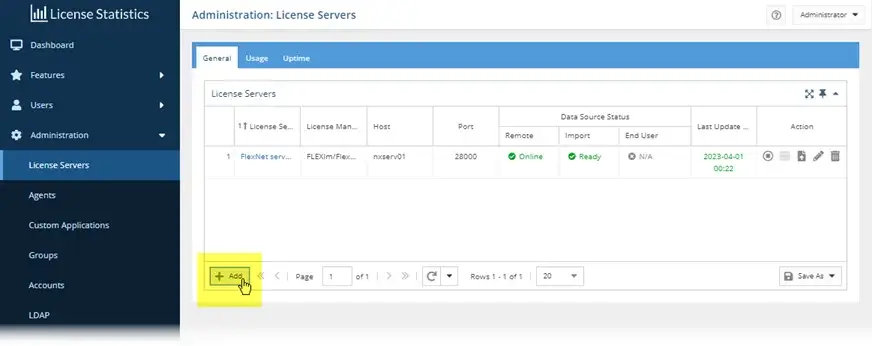
- Open License Statistics, and go to Administration > License Servers. (You must have License Statistics administrator privileges to access this page.)
- Click Add to open the Add License Server wizard.

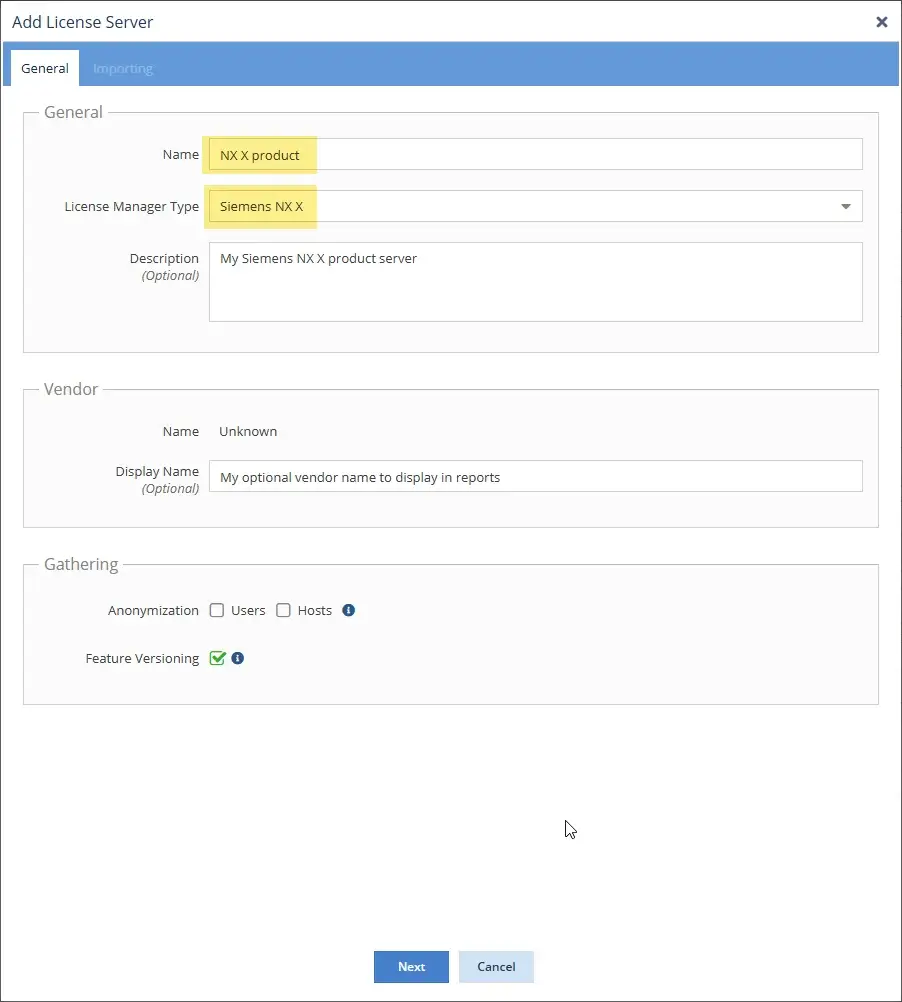
- The General tab of the Add License Server wizard lets you define the license server type and basic information about the license server.
- At a minimum, enter the license server name, and select Siemens NX X as the license server type.
- Optionally, you can enter a description for the license manager, and under the Vendor section, add a name to display for the vendor in reports. (The Vendor Name entry will be automatically detected and visible after the first successful query or import.)

Enable importing for the license server
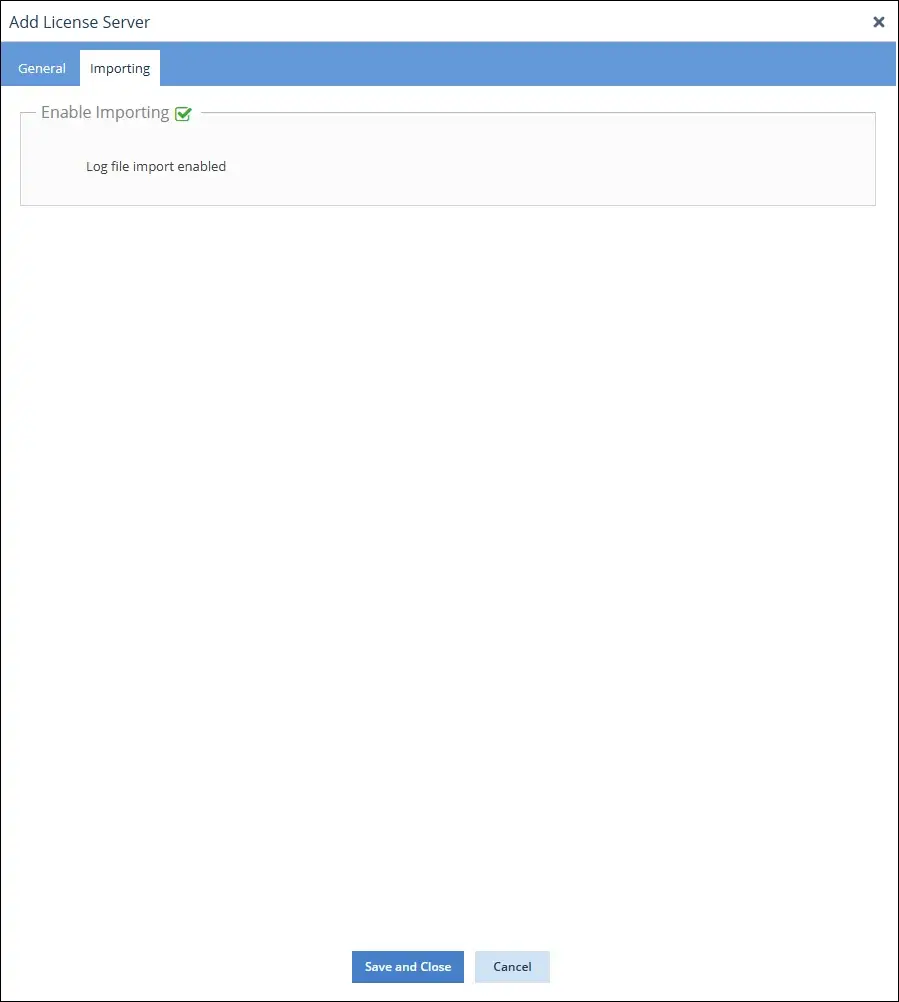
Next, you’ll enable importing the log file, which is required in order to import the license server data from your Siemens NX X archive file. To enable importing:- Click Next from the bottom of the Server Agent tab to go to the Importing tab.

- Make sure Enable Importing is toggled on (the default).
Save the license server
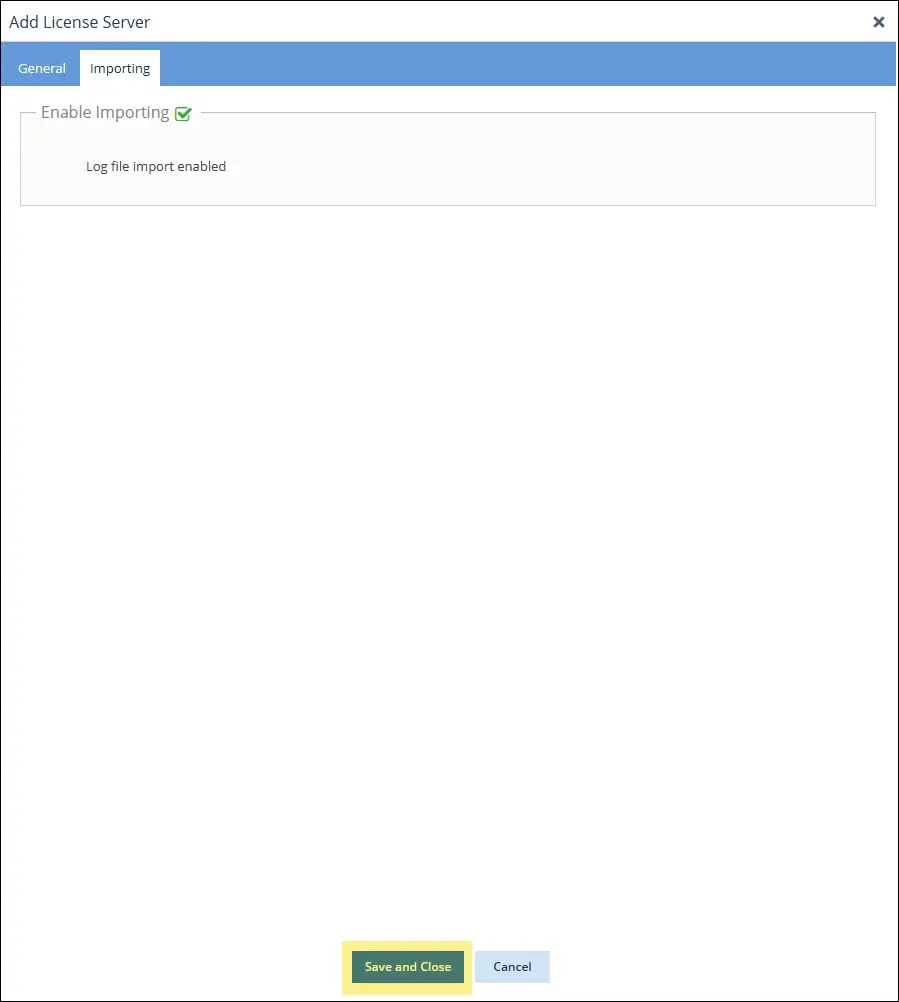
From the Importing tab, click Save and Close to save the license server and close the Add License Server wizard.
Your Siemens NX X license server monitoring setup is complete!
To import your NX X product usage data, use your online Siemens account to download usage reports from the Xcelerator Admin Console as a zip archive that contains a set of events, including usage and denials. You can then import the archive file using the License Statistics UI or API in the same way as any other import data source.
Let us know what you think!
We hope this article was helpful in walking you through configuring License Statistics to track your Siemens NX X license server usage. You can learn more by visiting the License Statistics documentation, and as always, feel free to contact us at support@x-formation.com with your questions or comments.Get to know License Statistics
 Your Siemens NX X license server monitoring setup is complete!
To import your NX X product usage data, use your online Siemens account to download usage reports from the
Your Siemens NX X license server monitoring setup is complete!
To import your NX X product usage data, use your online Siemens account to download usage reports from the